Introduction
Imagine opening your office on a Monday and finding every client file encrypted by ransomware, or a hard drive failure wiping out three years of tax returns. Without a good backup, that is the end of the firm. With one, it is a bad day.
Backups are the least glamorous part of cybersecurity — and the most important when something goes wrong. This guide covers what to back up, how often, where to keep it, and how to prove it works before you need it.
The 3-2-1 rule
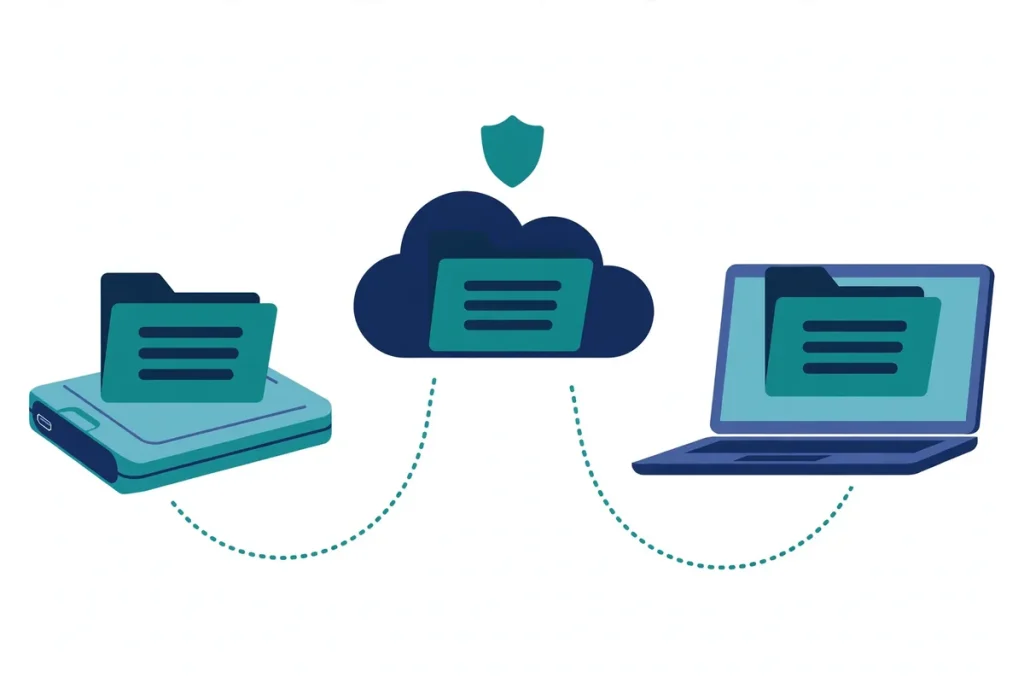
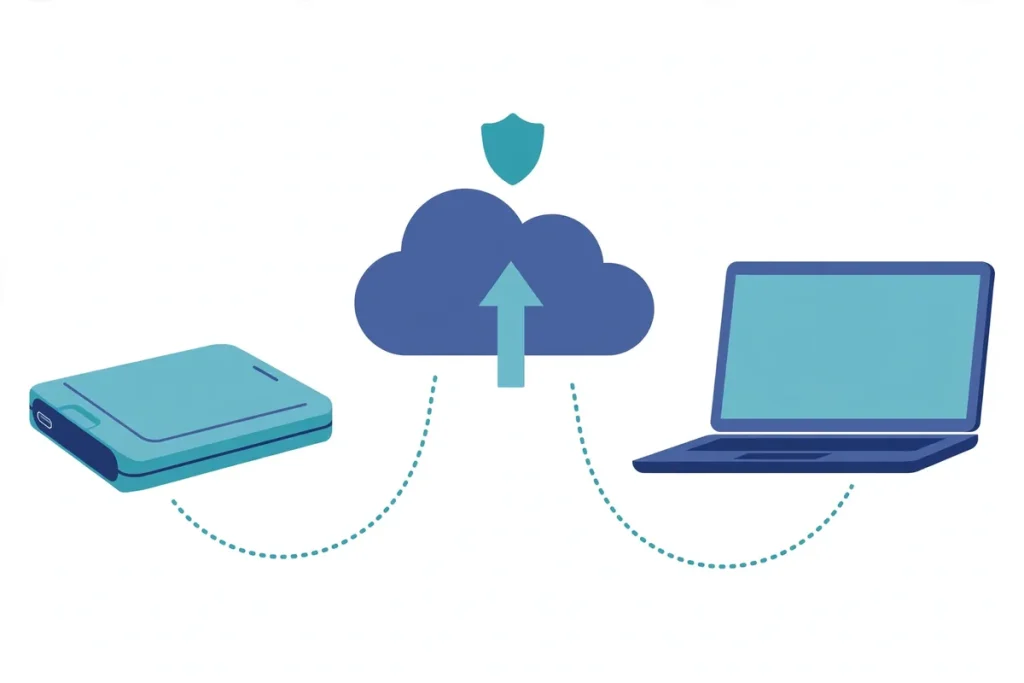
The standard every firm should follow:
- 3 copies of your data — the original, plus two backups
- 2 different types of media — for example, an external hard drive and a cloud backup, so one failure cannot take out both
- 1 copy offsite — away from the office, so a fire, flood, or theft cannot destroy everything at once
If your current setup does not meet 3-2-1, it is not a backup plan. It is a hope.
What to back up
- Client files — tax returns, workpapers, financial statements, payroll records
- Tax software data — your tax preparation software’s database, not just the PDFs it produces
- QuickBooks company files — and the settings that go with them
- Email — especially if client documents arrive by email
- Documents and templates — engagement letters, checklists, your WISP, and firm templates
- System settings — user lists, permissions, and configurations, so a rebuild does not mean starting from scratch
If you are unsure whether something is backed up, assume it is not — and check.
How often to back up
- Daily for anything that changes daily: client files, tax software data, QuickBooks, email
- Weekly for documents and templates that change less often
- Immediately after a major change: a big client onboarding, a system migration, or the end of tax season
Automatic backups beat manual ones every time. If a backup depends on someone remembering to plug in a drive, it will be forgotten during the busiest week of the year — exactly when you need it most.
Where to keep backups
- Onsite: an external hard drive or network drive, kept in the office, for fast restores of a single deleted file
- Offsite / cloud: a cloud backup service, encrypted, with access limited to the people who need it — this is your protection against fire, flood, theft, and ransomware that also encrypts local drives
- Offline copy: at least one backup that is not continuously connected to your network. Ransomware encrypts everything it can reach — including a backup drive that is always plugged in. A disconnected or immutable backup cannot be encrypted by an attack on your live systems.
Testing the restore — the step everyone skips
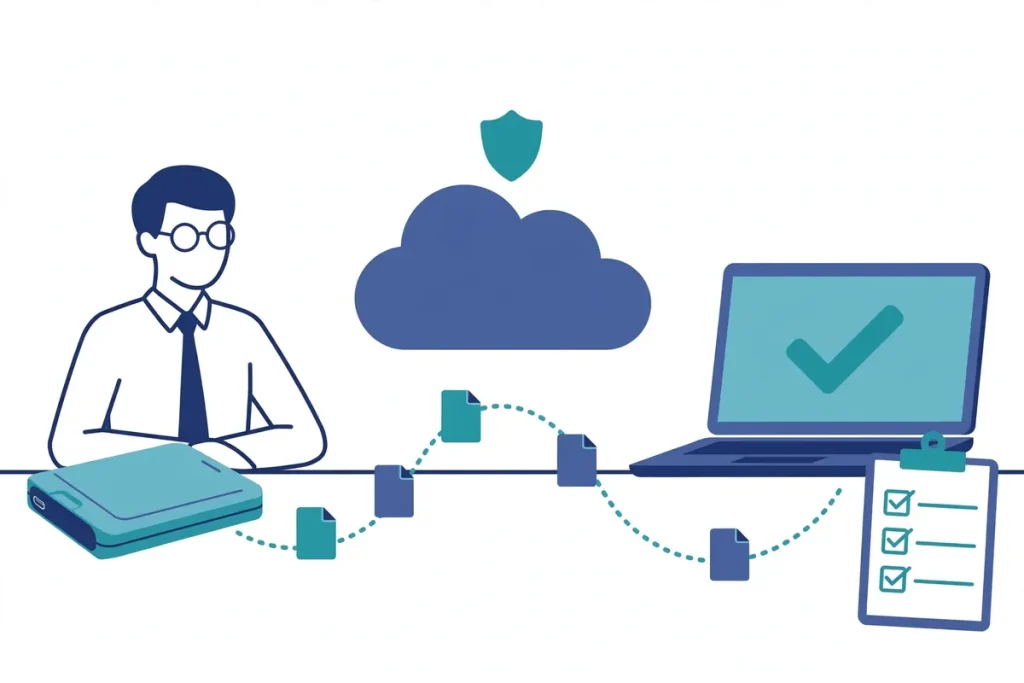
A backup that has never been tested by restoring it is only a hope, not a safety net. Test it:
- Quarterly: restore a random set of files to a test folder and confirm they open correctly
- Annually: do a full restore test — rebuild a machine or restore the tax software database from backup and confirm the firm could work from it
- After any change: new backup software, new server, new cloud provider — test immediately, not next quarter
Record every test: date, what was restored, whether it worked, and who did it. If a test fails, fix it the same week.
Recovering from ransomware
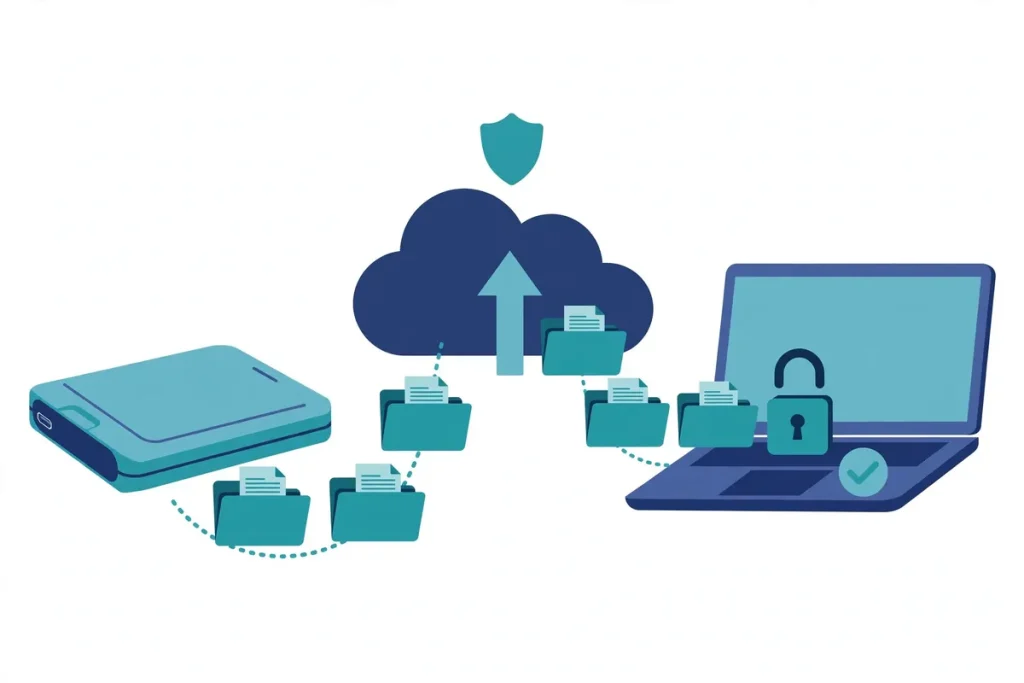
If ransomware hits:
- Disconnect everything — unplug network cables, turn off Wi-Fi, isolate affected machines immediately so the encryption cannot spread
- Do not pay the ransom first — paying does not guarantee your data back, and it marks you as a firm that pays
- Check your backups — find the most recent clean backup from before the attack, and confirm it is not also encrypted (this is why an offline copy matters)
- Call your IT support and your cyber insurer — they will guide the recovery and the investigation
- Restore from the clean backup — wipe the affected machines and restore, rather than trying to clean an infected system
- Change passwords and review access — the attacker got in somehow; find out how and close the gap
- Notify affected clients and the IRS as required, and document everything
Firms with tested, offline backups recover from ransomware in days. Firms without them often do not recover at all.
Backup tools for small firms
You do not need enterprise software. For most small accounting firms, a combination of two tools is enough:
- Cloud backup (for example, a dedicated service such as Backblaze or Carbonite) — automatic, offsite, encrypted. Note: Microsoft 365 Backup is a paid add-on; the built-in OneDrive/Google Drive file sync is not a backup.
- Local backup (an external drive with your operating system’s built-in backup, or your backup software’s local option) — fast restores for everyday mistakes
The right answer is the one that runs automatically, keeps an offline copy, and gets tested. Price matters less than reliability.
Backup checklist
- ☐ 3-2-1 rule met: 3 copies, 2 media types, 1 offsite
- ☐ Daily automatic backups for client files, tax software, QuickBooks, and email
- ☐ At least one offline / immutable copy that ransomware cannot reach
- ☐ Backups encrypted, with access limited to authorized staff
- ☐ Test restore done this quarter, and recorded
- ☐ Full restore test done this year
- ☐ Everyone knows where backups live and who is responsible for them
- ☐ Backup failures alert someone — a backup that fails silently is worse than no backup, because it gives false confidence
Frequently asked questions
Is cloud storage the same as a backup?
No. Storing files in OneDrive, Google Drive, or Dropbox is not a backup — if a file is deleted or encrypted there, the change syncs everywhere. A real backup keeps separate, versioned copies you can restore from.
How long should we keep backups?
Keep at least several months of versions, so you can restore from before a problem that was only discovered later (for example, a file corrupted weeks ago). Check your professional retention obligations for client records, which may be longer.
What if our backup is also encrypted by ransomware?
That is why an offline or immutable copy is essential. A backup that is always connected can be encrypted just like your live files. Disconnect it, or use a service that keeps versions that cannot be altered.
How much does backup cost?
Cloud backup for a small firm is typically a few dollars per user per month, plus the cost of an external drive. It is one of the cheapest protections you can buy — and the one that saves the firm when everything else fails.
Sources: IRS Publication 4557, Safeguarding Taxpayer Data, IRS: Data theft information for tax professionals.
Conclusion
Backups are boring until the day you need them. Then they are everything.
Set up automatic 3-2-1 backups this week, keep one copy offline, and test a restore this quarter. The firm that can restore its data in a day is the firm that survives a ransomware attack, a failed drive, and a flooded office — and keeps its clients’ trust intact.
Disclaimer: This article is general information, not legal advice. Check your professional retention obligations for client records and consult a qualified professional for your firm’s specific requirements.

Muhammad Waseem is the founder of Cybersecurity for Accountants. He researches IRS and FTC guidance and turns it into practical, plain-English checklists and guides to help small accounting and tax firms protect their clients’ data.