Introduction
If your firm does only one security upgrade this year, make it this one: turn on multi-factor authentication (MFA) everywhere.
MFA is the single most effective defense a small accounting firm has. It blocks the most common attack of all — someone logging in with a stolen password — and both the IRS and the FTC now expect it. This guide explains what MFA is, which method to use, and how to set it up for the systems your firm actually uses.
What is MFA?
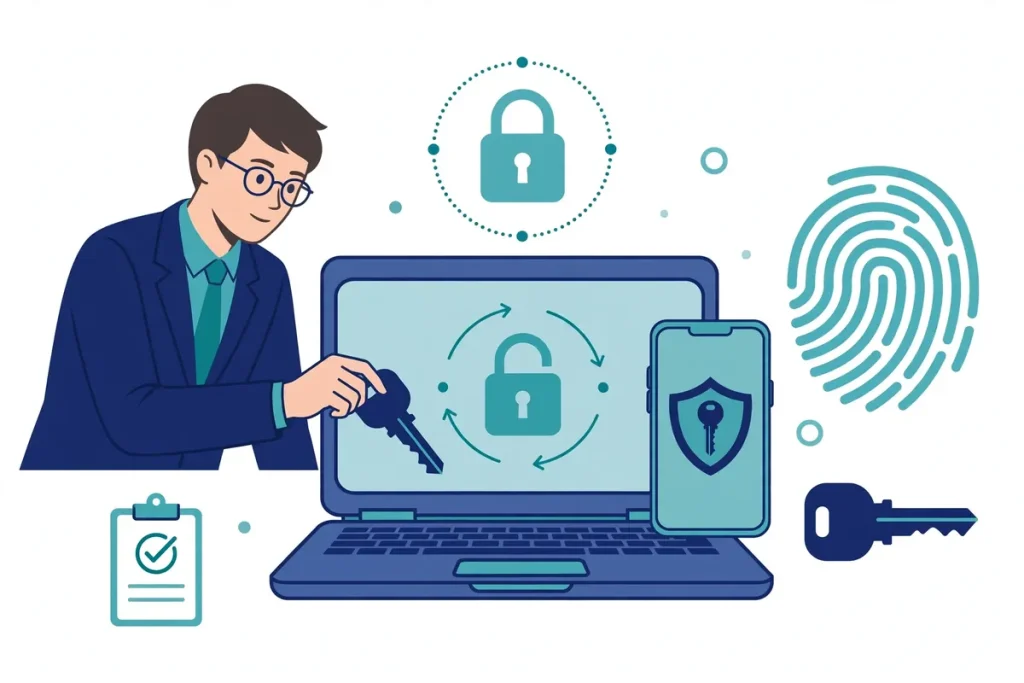
Multi-factor authentication means proving who you are in two ways, not one:
- Something you know — your password
- Something you have — your phone, with an authenticator app or a security key
Even if a criminal steals your password (through phishing, a data breach, or guessing), they still cannot log in without that second factor. That one extra step stops the vast majority of account takeovers.
Why the IRS and FTC require it
- IRS Publication 4557 lists MFA as a core safeguard for tax preparers.
- The FTC Safeguards Rule (16 CFR Part 314) requires MFA for anyone accessing a system that holds customer information. Passwords alone are not enough under the updated rule.
In other words, MFA is no longer best practice — it is an expectation. A firm without MFA will have a hard time explaining itself after a breach.
Authenticator app vs SMS vs security key
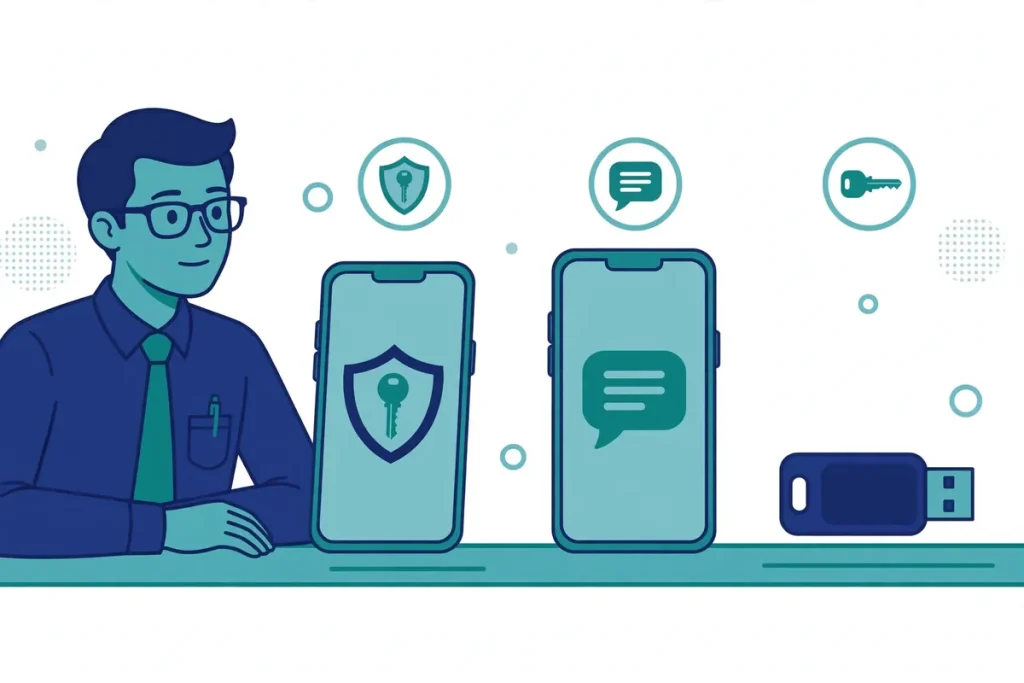
Authenticator app (recommended for most firms)
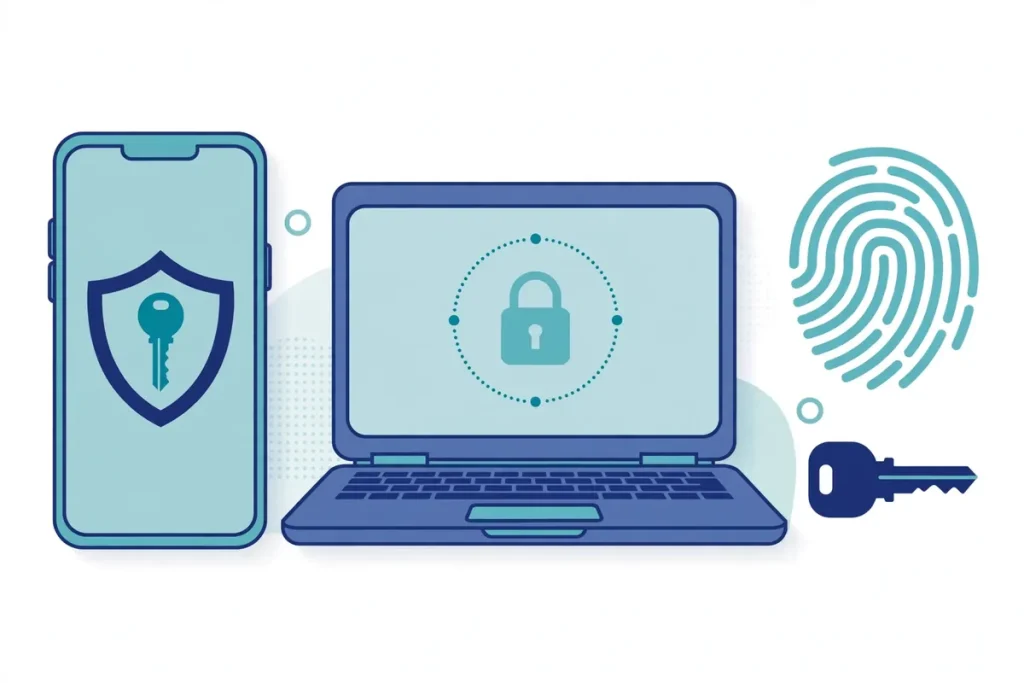
Apps like Microsoft Authenticator, Google Authenticator, or Authy generate a six-digit code that changes every 30 seconds. They work without mobile signal, they are free, and they are far harder to intercept than SMS. This is the right choice for most firms.
SMS codes (better than nothing)
A code sent by text message is better than no MFA at all, but it is the weakest method — phone numbers can be hijacked (SIM swapping), and texts can be intercepted. Use SMS only where an authenticator app is not offered.
Security key (strongest, for high-risk accounts)
A small USB key (such as a YubiKey) that you tap to log in. It cannot be phished at all. Consider keys for the firm’s email admin account and for anyone with access to all client data.
How to turn on MFA, system by system
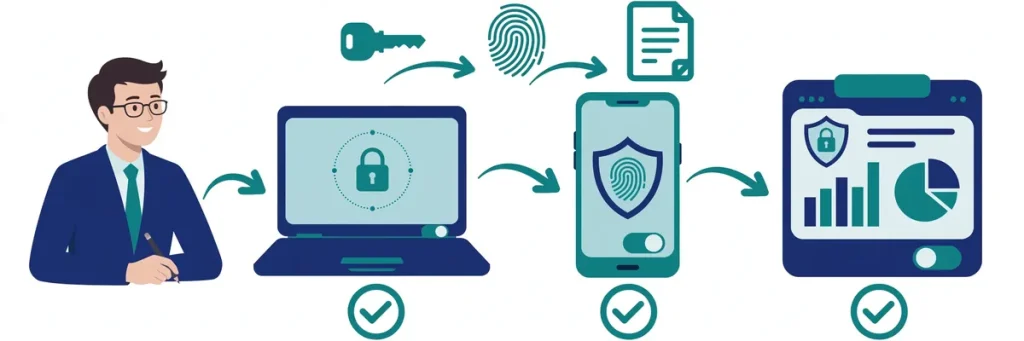
Email (do this first)
Email is the key to everything else — password resets for almost every system go through it. Turn on MFA for every staff mailbox, starting with the owner and anyone with admin rights.
- Microsoft 365: enforce MFA via Security Defaults or Conditional Access in the Microsoft Entra admin center. (The older per-user page — Admin center > Users > Multi-factor authentication — is the legacy method.)
- Google Workspace: Admin console > Security > Authentication > 2-Step Verification, then enforce for the organization
QuickBooks Online
QuickBooks Online requires MFA for sign-in. Make sure every user has their own login (never share one) and that each person has set up their authenticator app. Check the user list and remove anyone who no longer works at the firm.
Tax software
Your tax preparation software will have MFA in its security settings — usually under account, profile, or security. Turn it on for every preparer and admin account. If your software offers it, require MFA for all users, not just admins.
Cloud storage and client portal
Turn on MFA for Google Drive, OneDrive, Dropbox, or whichever cloud storage you use, and for your secure client portal. These hold the same client files as your tax software.
Remote access and VPN
If anyone works from home or logs in remotely, MFA is mandatory for that access too — remote logins are the first thing attackers try.
Rolling it out without chaos
- Start with the owner and admins — get them comfortable first, so they can help everyone else
- Pick one authenticator app for the whole firm — consistency beats choice; Microsoft Authenticator or Google Authenticator both work everywhere
- Set up a backup method — each person should register a second method (a second device, backup codes printed and stored safely) so a lost phone does not lock them out
- Do it in one week, not one quarter — announce the date, help each person set it up, and then enforce it. A half-finished rollout leaves the weakest accounts exposed
- New starters get MFA on day one — add it to your onboarding checklist, next to the password manager and the phishing briefing
What if someone loses their phone?
This is the fear that stops firms from turning on MFA — and it is easy to handle:
- Keep printed backup codes in a locked drawer or safe, one set per person
- Register a second device (a spare phone or tablet) where possible
- Have an admin who can reset MFA for a staff member after verifying their identity in person — never by email alone
A lost phone should be a ten-minute inconvenience, not a reason to turn MFA off.
Common objections — answered
“It slows us down during tax season.”
It adds about ten seconds per login. A breach costs weeks. The math is not close.
“Our staff will not like it.”
They will get used to it in a week. Explain why — one stolen password can expose every client’s tax return — and most people accept it immediately.
“We are too small to be targeted.”
Small firms are targeted because they are small: valuable data, weaker defenses. Attackers automate password attacks against thousands of firms at once; size does not protect you.
“We already have strong passwords.”
Strong passwords help, but they can still be phished, reused, or stolen in a breach at another site. MFA protects you even when the password is gone.
Frequently asked questions
Is SMS-based MFA enough for the FTC rule?
The rule requires MFA; it does not name a method. But SMS is the weakest method, and regulators and insurers increasingly expect authenticator apps or security keys. Use an app wherever it is offered.
Do I need MFA on systems that do not hold client data?
The requirement covers systems holding customer information. In practice, turn it on everywhere — email, banking, and admin accounts first, then the rest.
What about shared accounts?
Do not share accounts. Every person gets their own login and their own MFA. Shared logins mean you cannot revoke one person’s access, and you cannot tell who did what.
How often should we review MFA?
Check quarterly: is MFA still enforced for everyone, including new starters? Has anyone turned it off? Has anyone lost their backup codes?
Conclusion
MFA is the highest-return security step an accounting firm can take: minutes to set up, seconds a day to use, and it blocks the attack that causes most small-firm breaches. The IRS expects it, the FTC requires it, and your clients assume you already have it.
Turn it on this week — email first, then tax software, QuickBooks, and cloud storage — and tick the biggest item off your security list.
Disclaimer: This article is general information, not legal advice. Check the current IRS and FTC guidance and consult a qualified professional for your firm’s specific obligations.

Muhammad Waseem is the founder of Cybersecurity for Accountants. He researches IRS and FTC guidance and turns it into practical, plain-English checklists and guides to help small accounting and tax firms protect their clients’ data.