Introduction
Your firm’s email is its identity. Clients trust emails from your domain, and criminals know it — so they send fake emails that look exactly like yours, asking clients to send documents, change bank details, or click a link.
SPF, DKIM, and DMARC are three free records that stop this. Together, they prove an email really came from your firm, and they tell receiving servers to reject fakes. This guide explains what each one does, in plain English, and how to set them up in an afternoon.
The problem: anyone can fake your email address
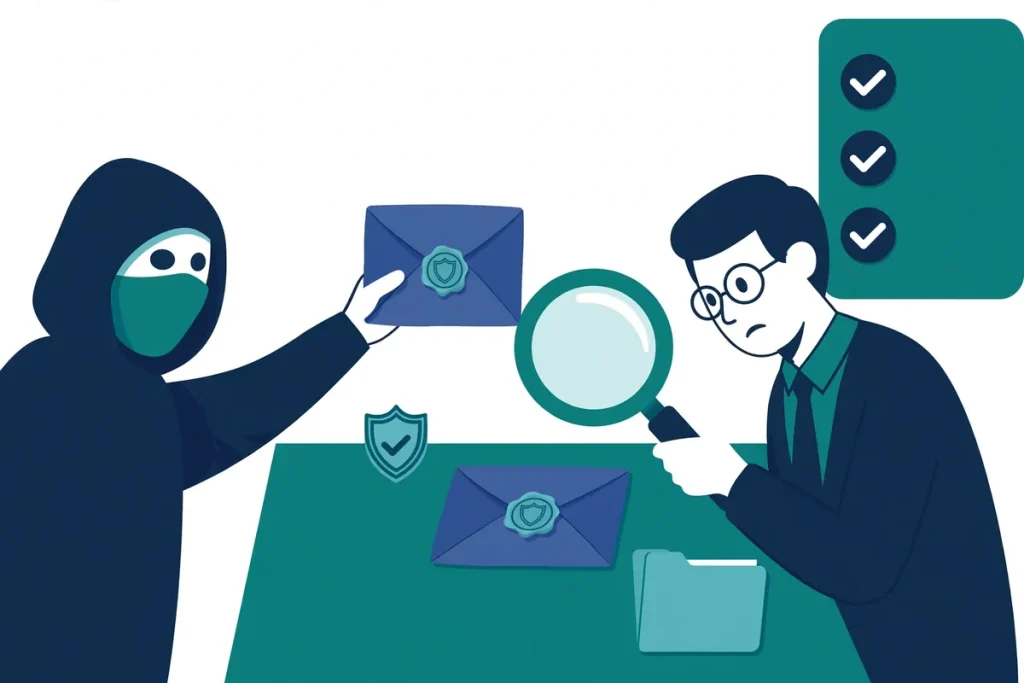
Email was not designed with identity checks. Without SPF, DKIM, and DMARC, anyone in the world can send an email that claims to be from your firm — and many email systems will deliver it without warning.
That is how business email compromise works: a criminal sends a client an email “from” your firm asking them to send their tax documents to a new address, or to pay an invoice to a new bank account. The client, trusting your name, complies.
SPF — who is allowed to send email for your domain?
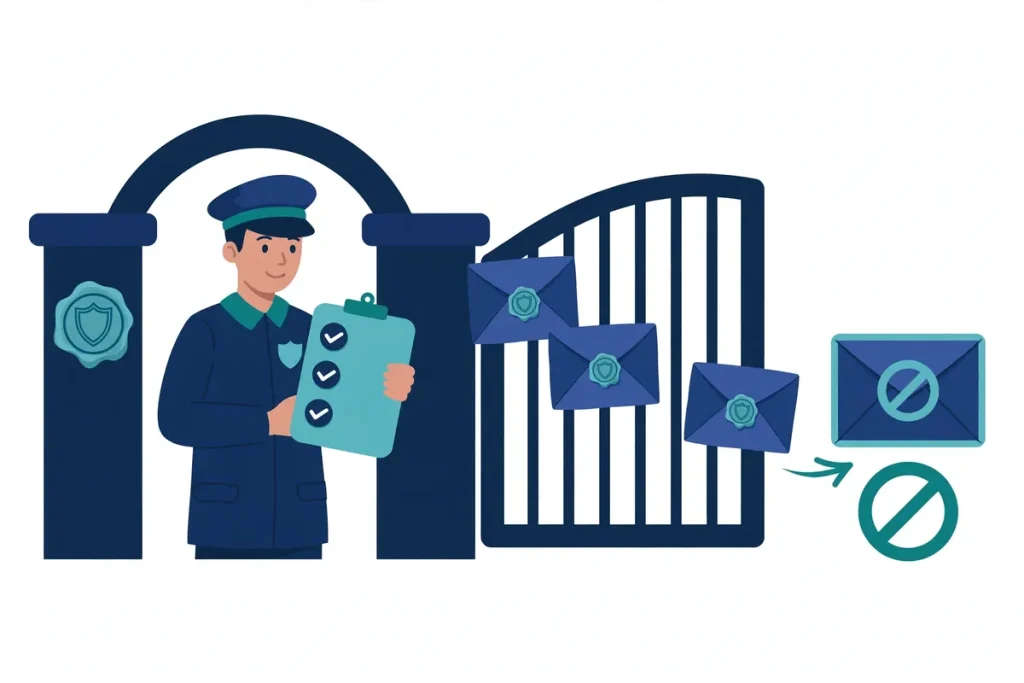
What it is: a DNS record listing the servers allowed to send email on behalf of your domain.
How it works: when an email arrives claiming to be from your firm, the receiving server checks your SPF record. If the sending server is on the list, it passes. If not, it fails — and the email can be rejected or flagged.
What you need to do: add a TXT record to your domain’s DNS with the servers you use — your email provider (for example, Microsoft 365 or Google Workspace), your tax software if it sends email for you, and any other service that sends mail as your firm. Your email provider publishes the exact record to use; copy it, do not guess it.
DKIM — proving the email was not tampered with
What it is: a digital signature added to every outgoing email, verified by a public key in your DNS.
How it works: your email server signs each outgoing message with a private key. The receiving server checks the signature against the public key in your DNS. If the message was altered in transit, the signature breaks and the email fails the check.
What you need to do: turn on DKIM in your email provider’s admin console (Microsoft 365 and Google Workspace both have a one-click setup), then publish the DKIM key they give you as a DNS record. It takes about fifteen minutes.
DMARC — telling the world what to do with fakes
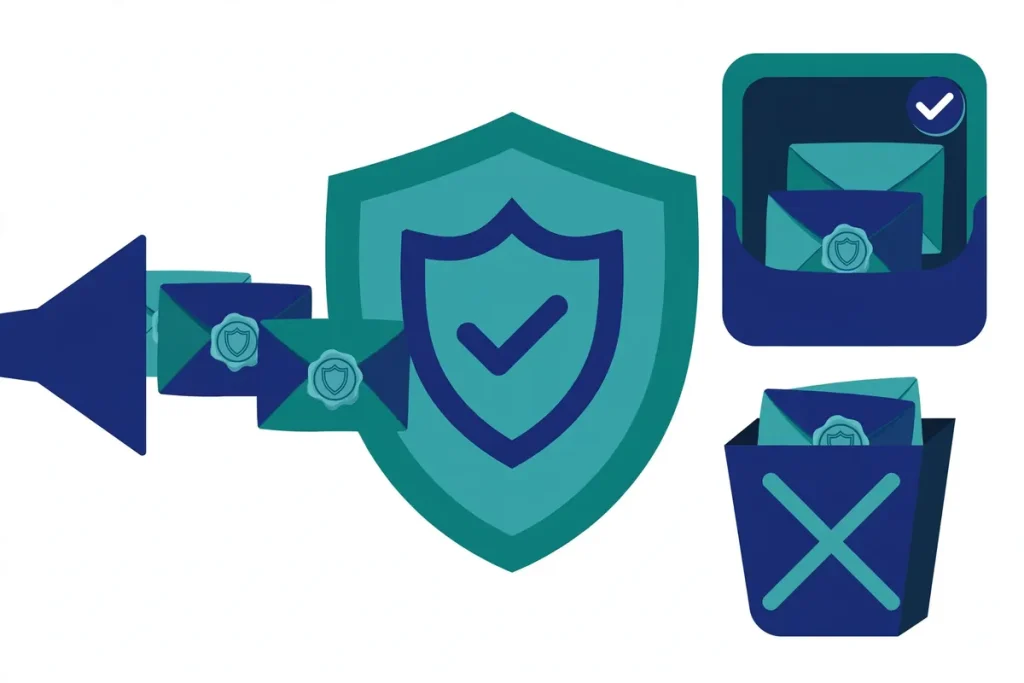
What it is: a DNS record that tells receiving servers what to do when an email fails SPF or DKIM, and asks them to send you reports about it.
How it works: DMARC ties SPF and DKIM together. You set a policy — none (just monitor), quarantine (send failures to spam), or reject (block failures outright) — and receivers follow it.
What you need to do:
- Start with p=none and an email address for reports (for example, rua=mailto:dmarc@example.com (replace example.com with your firm’s domain). Watch the reports for a week or two to see which legitimate services send mail as your firm — you may discover a service you forgot.
- Add every legitimate sender to your SPF record.
- Move to
p=quarantine, then top=rejectonce you are confident nothing legitimate is being blocked.
Do not jump straight to reject on day one — you could block your own legitimate email if a service was missed.
Setting it up — step by step
- Find your DNS management — for your own firm, it is wherever your domain’s DNS lives
- SPF: add the TXT record your email provider gives you (it will look like
v=spf1 include:_spf.google.com ~allor the Microsoft equivalent — use your provider’s exact text) - DKIM: enable DKIM in your email admin console and publish the key it generates
- DMARC: add a TXT record for _dmarc with v=DMARC1; p=none; rua=mailto:dmarc@example.com (replace example.com with your firm’s domain).
- Wait 24–48 hours for DNS to propagate, then check with a free DMARC checker (for example, MXToolbox or dmarcian’s free checker) that all three records are found and valid
- Review the reports weekly for the first month, then move the policy to quarantine and finally reject
Common mistakes
- Two SPF records. A domain must have exactly one SPF record. If you add a second, both break. Combine all senders into one record.
- Forgetting a sender. Your tax software, your client portal, your invoicing tool — if it sends email as your firm and is not in SPF, its mail will fail. Check the DMARC reports to find them.
- Setting
p=rejecttoo early. A legitimate service you forgot will be blocked. Start withnone, thenquarantine, thenreject. - Never checking the reports. DMARC reports tell you who is trying to impersonate your firm. Read them — they are the early warning system.
- Thinking SPF alone is enough. SPF without DKIM and DMARC is weak: forwarded email can break SPF, and without DMARC nobody acts on a failure. You need all three.
Beyond SPF, DKIM, and DMARC
These three records stop impersonation, but they do not stop every email threat. Also do:
- MFA on every mailbox — so a stolen password does not give away the account
- Phishing training — staff who check senders and links stop the emails that do get through
- A secure client portal — so sensitive documents never travel by plain email at all
- Never share passwords or MFA codes by email — no legitimate service asks for them
Frequently asked questions
How long does setup take?
About an afternoon: an hour to add the records, then waiting for DNS to propagate. The monitoring period before moving to reject takes one to two weeks.
Does it cost anything?
No. SPF, DKIM, and DMARC are free DNS records. Some providers charge for advanced reporting tools, but the records themselves cost nothing.
Will it stop all phishing?
No. It stops criminals impersonating your domain. It does not stop phishing from other domains, or a hijacked client account. That is what MFA and training are for.
What if we use a third party to send email for us?
Add them to your SPF record and, where possible, set up DKIM for them. Your DMARC reports will show you if you missed one.
How do I know it is working?
Use a free checker (MXToolbox, dmarcian) to confirm all three records exist and are valid, then watch your DMARC reports: legitimate mail should pass, and impersonation attempts should be rejected.
Sources: Google Workspace: Set up DMARC, Microsoft: Set up DMARC to validate email in Microsoft 365.
Conclusion
SPF, DKIM, and DMARC are free, they take an afternoon to set up, and they protect both your firm and your clients from the most damaging email scam there is — someone pretending to be you.
Set them up this week, monitor the reports, and move to reject. Your clients will never see the fake emails, because the internet will block them before they arrive.
Disclaimer: This article is general information, not legal advice. DNS record values depend on your email provider — use the exact records your provider publishes.

Muhammad Waseem is the founder of Cybersecurity for Accountants. He researches IRS and FTC guidance and turns it into practical, plain-English checklists and guides to help small accounting and tax firms protect their clients’ data.