Introduction
QuickBooks Online holds your clients’ bank accounts, payroll, invoices, and financial history. If an attacker gets into it, they can see everything, change payment details, and export years of records in minutes.
The good news: securing QuickBooks Online is mostly a matter of turning on the protections Intuit already provides and managing who can do what. This guide walks through every setting that matters, in order.
1. Turn on MFA for every user

QuickBooks Online requires multi-factor authentication. Make sure it is actually on for every user — including the owner and any admin accounts — and that each person uses an authenticator app rather than SMS where possible.
- Every person gets their own login. Never share one login between staff members, and never share the owner’s login with the team.
- When someone leaves the firm, remove their user the same day.
2. Set user permissions properly
QuickBooks Online lets you control exactly what each user can see and do. Use it.
- Give the minimum access each job needs. A bookkeeper who only enters invoices does not need access to payroll or banking. An admin who only runs reports does not need to edit transactions.
- Use the built-in roles (Standard, Company Admin, etc.) and custom roles where available, rather than making everyone an admin.
- Review permissions quarterly — and immediately when someone’s role changes. Access that was needed for one project in January should not still be there in June.
- Accountant access: use the dedicated accountant user type for your firm’s own accountants, and remove accountant access when an engagement ends.
3. Check the audit log regularly
QuickBooks Online keeps an audit log of who did what and when — logins, edited transactions, deleted entries, changed settings. It is your best tool for spotting trouble early.
- Check the audit log weekly during busy periods and monthly otherwise
- Look for: logins at odd hours, deleted or voided transactions, changed bank details, and new users you do not recognise
- If you see something you cannot explain, change the password for that account immediately and investigate before doing anything else
4. Protect the email account behind QuickBooks
Your QuickBooks login can be reset through your email. If the email account is compromised, QuickBooks is compromised too — whatever MFA you have on QuickBooks itself.
- Turn on MFA for the email account used for QuickBooks, and use a strong, unique password for it
- Do not use a shared or generic email address (like info@) as the QuickBooks owner login
5. Secure bank connections
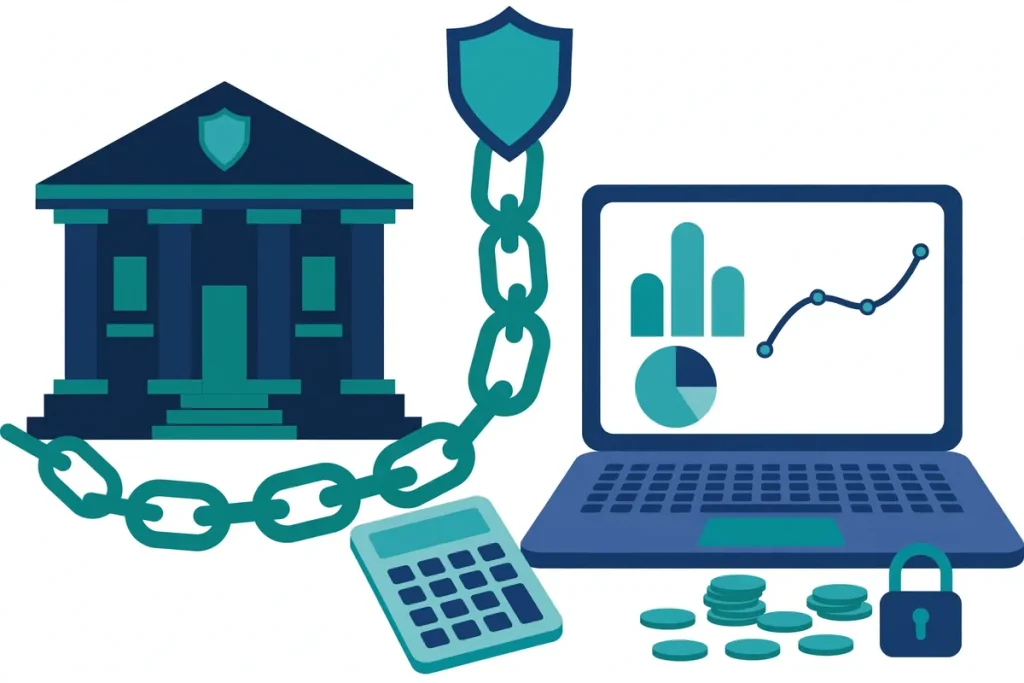
Bank feeds are convenient — and a target.
- Reconnect bank feeds only through QuickBooks itself, never through a link in an email
- Review connected bank accounts regularly and disconnect any you no longer use
- If bank details change, verify the change by phone with the bank or the client before updating anything in QuickBooks
6. Back up your QuickBooks data
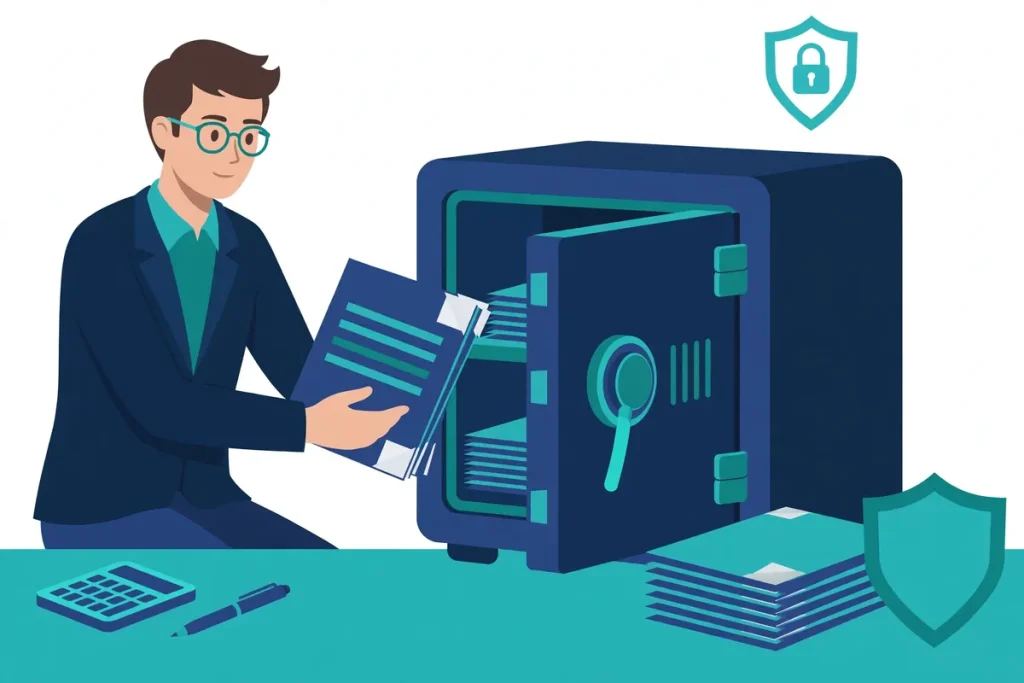
QuickBooks Online stores your data in Intuit’s cloud, but that does not mean you should have no backup of your own.
- Export key reports and company data regularly (for example, monthly), and store the exports securely — encrypted, with access limited to the people who need them
- Keep a record of what was exported and when, so you know what you can restore
7. Watch for phishing targeting QuickBooks users
QuickBooks users are a favorite phishing target. Common tricks:
- Fake “Your QuickBooks subscription is about to expire” emails with a link to a fake login page
- Fake invoices that look like they came from QuickBooks, with a malicious attachment
- Fake support calls claiming your account has been compromised and asking for your password or MFA code
Intuit will never ask for your password or MFA code by phone or email. Only log in by going to QuickBooks yourself — never through an email link.
8. Keep devices and browsers secure
- Automatic updates on for the operating system and browser on every computer that accesses QuickBooks
- Do not access QuickBooks from public Wi-Fi without a VPN, and never from a shared or public computer
- Lock screens whenever you leave your desk — QuickBooks sessions left open on an unlocked computer are an open door
QuickBooks Online security checklist
- ☐ MFA on for every user, with an authenticator app
- ☐ Every person has their own login; no shared accounts
- ☐ Permissions reviewed — minimum access for each role
- ☐ Leavers removed on their last day
- ☐ Audit log checked this week
- ☐ Email account behind QuickBooks protected with MFA and a unique password
- ☐ Bank feeds reviewed; unused connections removed
- ☐ Monthly data export done and stored securely
- ☐ Staff warned about QuickBooks phishing emails this quarter
Frequently asked questions
Is QuickBooks Online secure by default?
It has strong protections built in, but they only work if you turn them on and manage users properly. The biggest risks are shared logins, excessive permissions, and unprotected email accounts — all of which are in your control.
Should we use QuickBooks Desktop or Online for security?
Both can be secured. Online has the advantage of Intuit managing updates and infrastructure, and MFA is built in. Note: Intuit does not give you a restorable backup of your QBO data by default — use a backup app (such as Rewind) to keep a copy you can restore from. Desktop gives you more local control but puts updates, backups, and network security on you. For most small firms, Online is the easier option to keep secure.
What should we do if we suspect a QuickBooks account was compromised?
Change the password from a clean device, check the audit log for what was accessed or changed, remove any users or bank connections you do not recognize, and contact Intuit support. If client financial data was exposed, follow your incident response plan and notify affected clients as required.
How often should we review user access?
Quarterly as a minimum, and immediately when someone joins, changes role, or leaves.
Sources: Intuit: Secure your Intuit Account and prevent lockout with extra verification methods, Intuit: Export your QuickBooks Online data.
Conclusion
Securing QuickBooks Online is not a one-time project. It is a short list of habits: unique logins, minimum permissions, MFA everywhere, a weekly look at the audit log, and a protected email account behind it all.
Work through the checklist above today. It takes under an hour, and it protects the financial data of every client your firm serves.
Disclaimer: This article is general information, not legal advice, and QuickBooks Online settings may change — verify the current settings in your own account before making changes.

Muhammad Waseem is the founder of Cybersecurity for Accountants. He researches IRS and FTC guidance and turns it into practical, plain-English checklists and guides to help small accounting and tax firms protect their clients’ data.